If you are an SCM professional, you probably start your day with a routine: Open SAP Logon, find the server, type your ID, and then your password. It’s a repetitive “digital chore” that drains your focus before the real work even begins.
In the SCM Automation Lab, we believe in working smarter. Today, we will build a simple yet powerful Excel tool that handles the entire logon process with a single click.
Step 1: Prepare the VBA Module
First, we need a dedicated space for our automation script within Excel.
- Open your Excel file and press
Alt + F11to enter the VBA Editor. - In the top menu, navigate to Insert > Module.
- A new white window will appear. This is where we will paste our “Magic Code.”
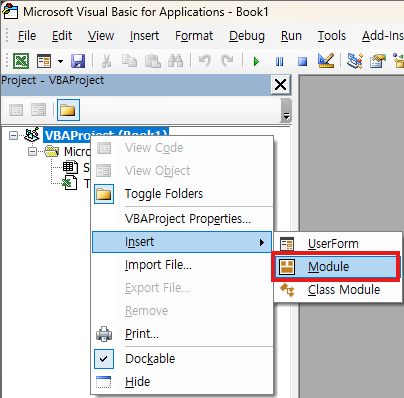
Caption: Setting up a new module in the VBA Editor to house our automation script.
Step 2: Identify Your SAP Connection Name
To tell Excel which “door” to open, you need the exact name of your server from the SAP Logon Pad.
- Open your SAP Logon Pad.
- Locate the Description column (e.g.,
PRD [Production]orECC_Global). - Note: You must copy this name exactly—including spaces and case sensitivity. A single typo will prevent the connection.
Step 3: The Optimized Automation Code
Instead of “hard-coding” your sensitive password directly into the script, we will design this macro to pull credentials from specific cells: A1 (Connection Name), A2 (ID), and A3 (Password).
Copy and paste the following code into your module:
VBA
' --- SCM Automation Lab: SAP Logon Macro ---
Sub SAP_Logon_Automation()
    Dim SapGuiAuto As Object, SAPApp As Object, SAPCon As Object, session As Object
    Dim ConnName As String, UserID As String, UserPW As String

    ' 1. Pull credentials from Sheet1
    With ThisWorkbook.Sheets(1)
        ConnName = .Range("A1").Value ' Exact Server Description
        UserID = .Range("A2").Value   ' Your SAP User ID
        UserPW = .Range("A3").Value   ' Your SAP Password
    End With

    ' 2. Initialize the SAP GUI Engine
    On Error Resume Next
    Set SapGuiAuto = GetObject("SAPGUI")
    If SapGuiAuto Is Nothing Then
        MsgBox "Please open SAP Logon Pad first!", vbCritical
        Exit Sub
    End If
    Set SAPApp = SapGuiAuto.GetScriptingEngine
    On Error GoTo 0

    ' 3. Open Connection & Start Session
    Set SAPCon = SAPApp.OpenConnection(ConnName, True)
    Set session = SAPCon.Children(0)

    ' 4. Automatic Login Sequence
    session.findById("wnd[0]/usr/txtRSYST-BNAME").Text = UserID
    session.findById("wnd[0]/usr/pwdRSYST-BCODE").Text = UserPW
    session.findById("wnd[0]").sendVKey 0 ' Simulate 'Enter' key

    MsgBox "SAP Logon Successful!", vbInformation
End Sub
Troubleshooting: Testing Your Code Line-by-Line (F8 Key)
Before finalizing your tool, it is a “Lab Best Practice” to test if the code works exactly as intended. In coding, this is called Debugging.
- Arrange your windows so you can see both the VBA Editor and the SAP screen at the same time.
- Click anywhere inside your
SAP_Logon_Automationcode. - Press the
F8key on your keyboard.- The first line of the code will be highlighted in yellow.
- Keep pressing
F8one step at a time.- Watch how the yellow highlight moves and observe your SAP screen simultaneously.
- You will see the ID/Password being typed and the login proceeding in slow motion!
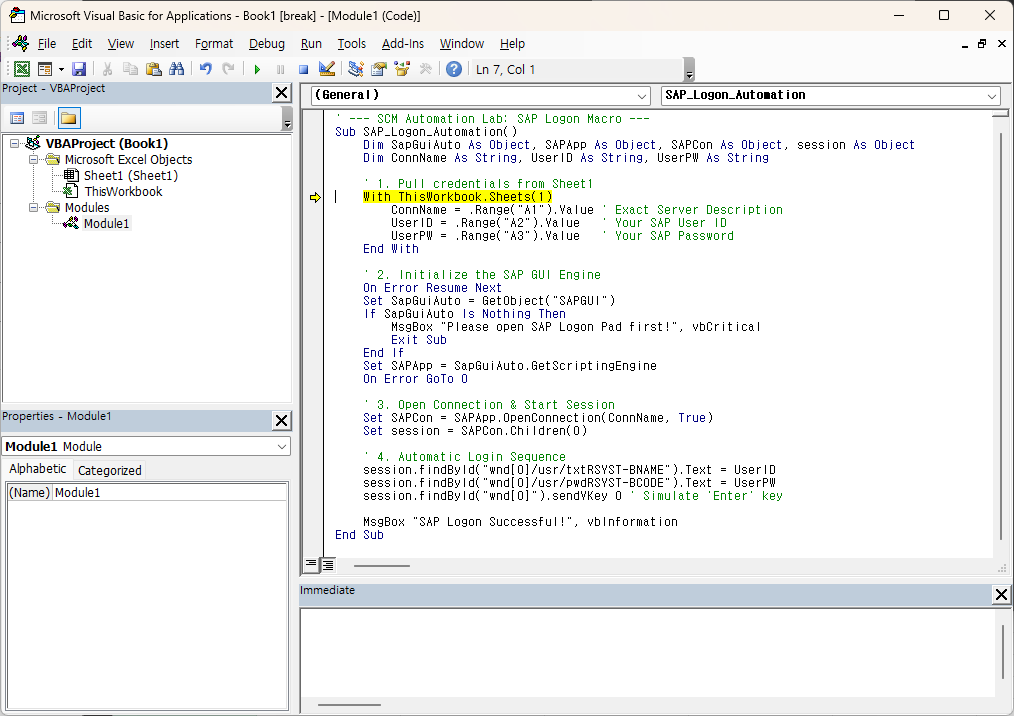
Caption: Using the F8 key to monitor the automation process step-by-step.
Step 4: Creating the “Logon” Button
Let’s make this tool user-friendly by adding a physical button to your worksheet.
- Go to the Developer tab.
- Click Insert > Button (Form Control).
- Draw the button on your sheet.
- When the ‘Assign Macro’ window pops up, select
SAP_Logon_Automationand click OK.
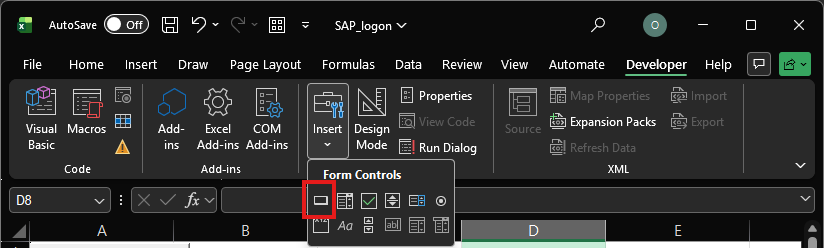
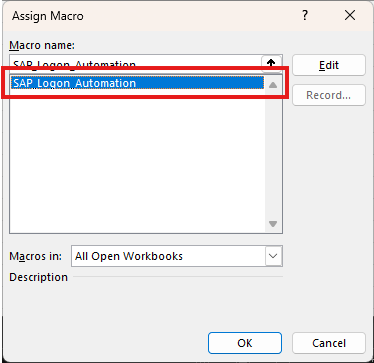
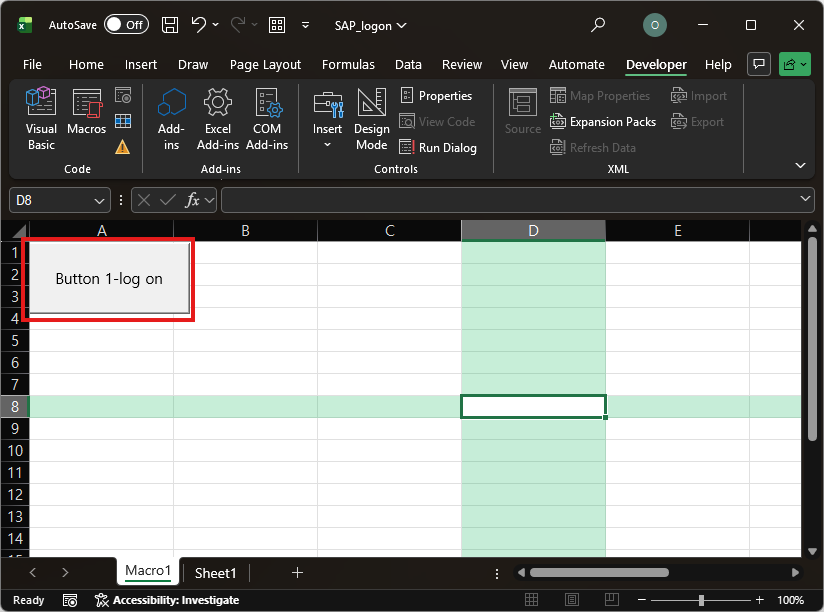
Caption: Assigning the logon script to a button for one-click access.
Lab Lead’s Pro-Tip: The “Stealth” Security Method
“Hide your credentials in plain sight.” To keep your password safe from prying eyes, change the font color of cells A1:A3 to white. The cells will appear empty to anyone glancing at your screen, but the VBA script will still read the data perfectly. It’s a simple, low-tech way to add a layer of privacy to your workstation.
📥 Download the Practice File
To help you follow along, I have prepared a template file. It includes the VBA module and the pre-configured automation button.
- File Name:
SCM_Automation_Lab_Post2.xlsm - Note: Please remember to enter your own SAP credentials in cells A1:A3 after downloading.
[Download Button: Click Here to Download]
Wrapping Up
Congratulations! You have just reclaimed several minutes of your week. You are now officially transitioning from a standard user to an SCM Automation Specialist.
What’s next? Logging in is just the beginning. In the next post, we will go deeper: How to automatically run T-Codes (like MB52 or MD04) and export live data directly into Excel. Stay tuned to the SCM Automation Lab! If you have any questions, drop them in the comments below.