Until now, we have treated “Logging in” and “Running a Report” as two separate steps. But in a high-efficiency SCM environment, every second counts. Today, we will merge our previous scripts into one Seamless Automation Pipeline.
Imagine arriving at your desk, clicking a single button in Excel, and watching your SAP data populate instantly while you grab a cup of coffee. Let’s make it happen.
Step 1: The Logic of Integration
To combine these two scripts, we need to ensure Excel doesn’t “get ahead” of SAP. We will use a Wait command to give SAP time to process the login before we push the T-Code commands.
Step 2: The Integrated “Master Code”
Copy and paste this combined script into your VBA module. This code handles both the authentication and the MB52 report execution.
VBA
Sub Full_SCM_Automation()
    Dim SapGuiAuto As Object, SAPApp As Object, SAPCon As Object, session As Object
    Dim ConnName As String, UserID As String, UserPW As String

    ' 1. Get Credentials from Sheet
    With ThisWorkbook.Sheets(1)
        ConnName = .Range("A1").Value
        UserID = .Range("A2").Value
        UserPW = .Range("A3").Value
    End With

    ' 2. Start SAP & Login
    Set SapGuiAuto = GetObject("SAPGUI")
    Set SAPApp = SapGuiAuto.GetScriptingEngine
    Set SAPCon = SAPApp.OpenConnection(ConnName, True)
    Set session = SAPCon.Children(0)

    ' Login Sequence
    session.findById("wnd[0]/usr/txtRSYST-BNAME").Text = UserID
    session.findById("wnd[0]/usr/pwdRSYST-BCODE").Text = UserPW
    session.findById("wnd[0]").sendVKey 0

    ' 3. The CRITICAL Step: Wait for 2 Seconds
    ' This allows SAP to load the main menu before sending the T-Code.
    Application.Wait (Now + TimeValue("0:00:02"))

    ' 4. Execute MB52 Data Extraction
    session.findById("wnd[0]/tbar[0]/okcd").Text = "/nMB52"
    session.findById("wnd[0]").sendVKey 0

    ' Set Selection Criteria (Example: Plant 1000)
    session.findById("wnd[0]/usr/ctxtS_WERKS-LOW").Text = "1000"
    session.findById("wnd[0]/tbar[1]/btn[8]").press ' Execute

    MsgBox "Full Process Complete! Your data is ready.", vbInformation
End Sub
Step 3: Troubleshooting the “Transition”
The most common error in integrated scripts is the “Object Not Found” error. This usually happens because VBA tries to find the MB52 input field before the SAP screen has finished loading.
Lab Tip: Debugging the Delay If your script crashes between login and MB52, increase the Application.Wait time from 2 seconds to 3 or 4. Every company’s SAP server speed is different!
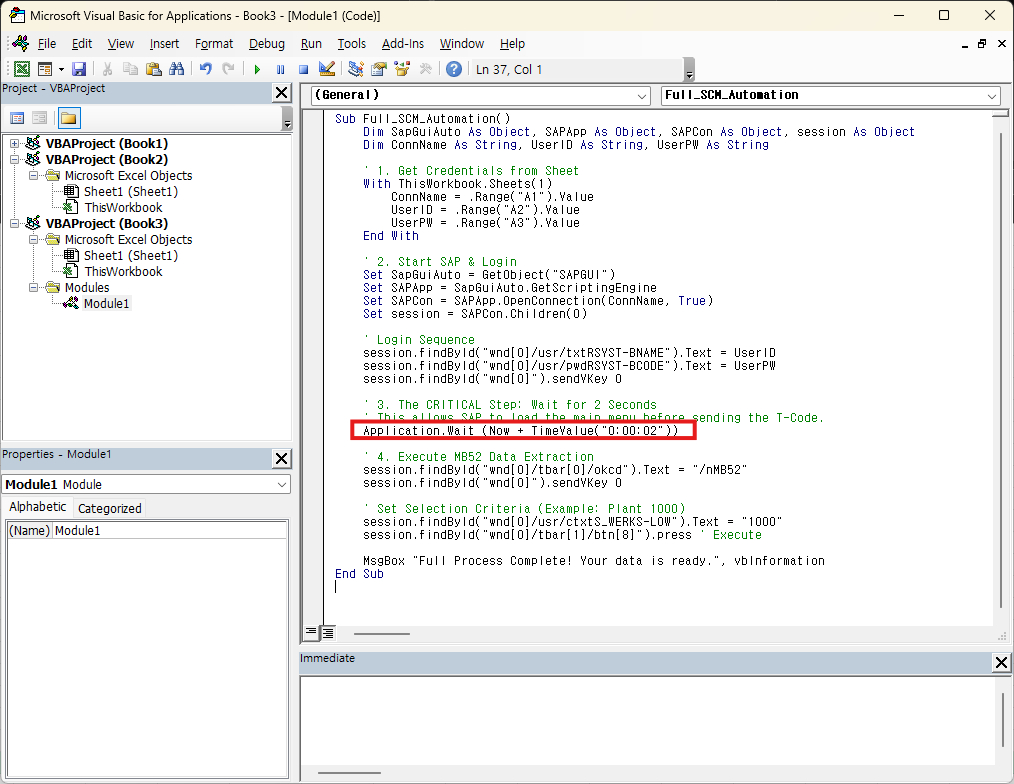
Caption: Adjusting the wait time is the secret to a stable automation pipeline.
Step 4: The “Single Button” Interface
Now, replace your old buttons with one master button.
- On your Excel Dashboard, go to Developer > Insert > Button.
- Assign the macro
Full_SCM_Automation. - Rename the button to: “🚀 UPDATE LIVE STOCK DATA”.
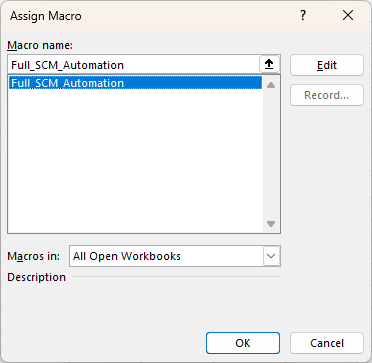

Caption: A professional SCM Dashboard starts with a clean, single-button interface.
Lab Lead’s Pro-Tip: Error Handling
“Assume something will go wrong.” What if SAP is already logged in? In advanced versions of this script, we add an
If session Is Nothingcheck to skip the login step if a connection is already active. This prevents the script from trying to open a second instance of SAP and causing a conflict.
Wrapping Up
By merging these scripts, you have moved from Task Automation to Process Automation. You now have a working prototype of an automated SCM reporting tool.
What’s next? Now that we have the power to pull any data at any time, we need to make it look professional. In the next post, we will introduce Power Query to automatically format this raw SAP data into a clean, ready-to-present report.