In our previous posts, we set up our environment and automated the logon process. Now, it’s time for the “Real Magic”: Extracting data. As an SCM professional, you likely spend a lot of time running MB52 (Warehouse Stock) or similar reports. Instead of manually entering plants and material types every morning, let’s make Excel do it for you.
Step 1: The Secret Weapon – SAP Script Recorder
The hardest part of SAP automation is identifying the “Object IDs” of the buttons and fields. Fortunately, SAP has a built-in Script Recording tool that writes the code for you.
- Log in to SAP manually.
- Click the “Customize Local Layout” icon (the colorful circle button on the far right of the toolbar) or press
Alt + F12. - Select Script Recording and Playback.
- Hit Record, then perform your usual MB52 steps (Enter T-Code, Input Plant, Execute, and Export to Spreadsheet).
- Stop recording and open the generated
.vbsfile with Notepad. This is your code template.
Step 2: Integrating the Script into Excel VBA
We will now take that recorded script and clean it up to work inside our Excel “Lab.”
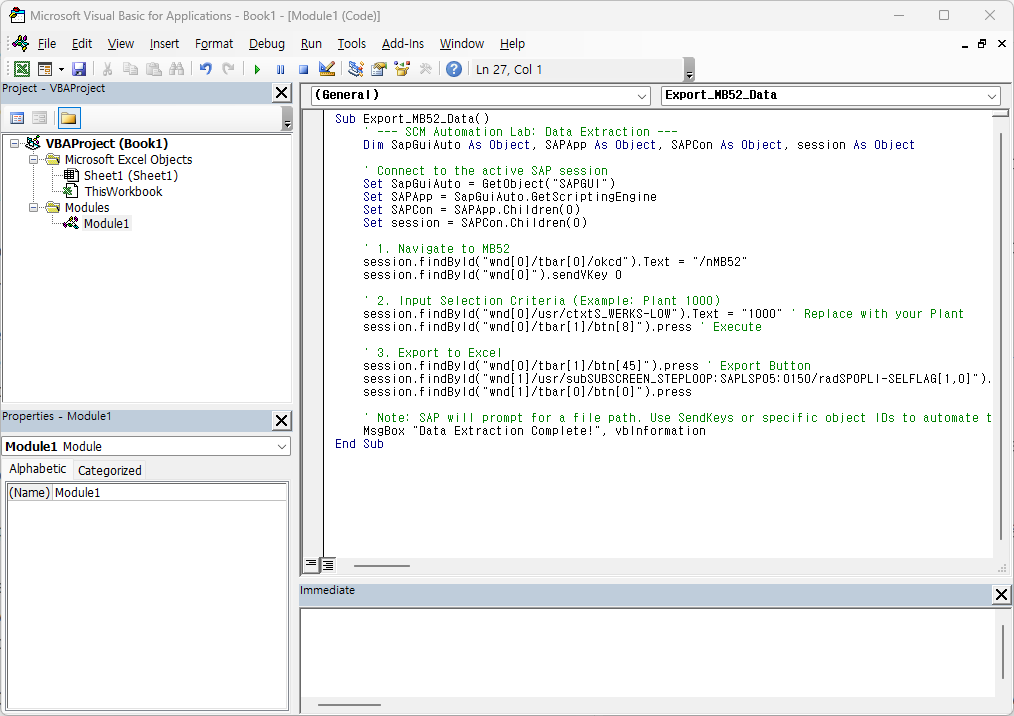
Caption: Creating a dedicated Sub for the MB52 extraction logic.
The Optimized Code
VBA
Sub Export_MB52_Data()
    ' --- SCM Automation Lab: Data Extraction ---
    Dim SapGuiAuto As Object, SAPApp As Object, SAPCon As Object, session As Object

    ' Connect to the active SAP session
    Set SapGuiAuto = GetObject("SAPGUI")
    Set SAPApp = SapGuiAuto.GetScriptingEngine
    Set SAPCon = SAPApp.Children(0)
    Set session = SAPCon.Children(0)

    ' 1. Navigate to MB52
    session.findById("wnd[0]/tbar[0]/okcd").Text = "/nMB52"
    session.findById("wnd[0]").sendVKey 0

    ' 2. Input Selection Criteria (Example: Plant 1000)
    session.findById("wnd[0]/usr/ctxtS_WERKS-LOW").Text = "1000" ' Replace with your Plant
    session.findById("wnd[0]/tbar[1]/btn[8]").press ' Execute

    ' 3. Export to Excel
    session.findById("wnd[0]/tbar[1]/btn[45]").press ' Export Button
    session.findById("wnd[1]/usr/subSUBSCREEN_STEPLOOP:SAPLSPO5:0150/radSPOPLI-SELFLAG[1,0]").Select
    session.findById("wnd[1]/tbar[0]/btn[0]").press

    ' Note: SAP will prompt for a file path. Use SendKeys or specific object IDs to automate the save.
    MsgBox "Data Extraction Complete!", vbInformation
End Sub
Step 3: Handling the “Save As” Dialog
When SAP exports data, a Windows dialog box usually appears asking where to save the file. This is often where beginners get stuck.
Lab Tip: Instead of fighting with the Windows dialog, try using the session.utils or pre-defining the file path in your SAP User Profile (T-Code: SU3). This ensures the file always lands in the same folder, which Excel can then open automatically.
Step 4: Testing with the F8 Key
As we learned in Post 2, always test your new script using the F8 key.
- Open MB52 in SAP.
- In VBA, press F8 to step through the code.
- Ensure the “Plant” is entered correctly and the “Execute” button is triggered.
If SAP throws an error like “The member could not be found,” it usually means the Object ID has changed. Simply re-record that specific step and update the ID in your VBA.
Lab Lead’s Pro-Tip: The “/n” Prefix
“Always start with a clean slate.” In the code above, notice we used
session.findById("...").Text = "/nMB52". The/nprefix is vital because it tells SAP to exit the current screen and start the T-Code from the main menu. Without it, your script might crash if you are already inside another transaction.
Wrapping Up
You have now moved from logging in to actually controlling SAP data. This is the foundation of every SCM dashboard.
What’s next? Now that we have the raw data in Excel, we need to clean it up. In the next post, we will discuss Power Query integration—how to automatically format your exported SAP data into a professional SCM report.
Are you finding the Script Recorder easy to use? Share your experience or any error codes in the comments below!